
Quick Setup for Ollama
To set up Ollama on a GPU server, install the Ollama binary, ensure your NVIDIA or AMD drivers are correctly configured, and run the service to offload computations to your GPU's tensor cores. This allows you to run large language models locally via a simple API.
Ollama is a simple way to run open models locally via an API, built on the llama.cpp engine. For a single user or a small team, Ollama is the easiest choice for running models on NVIDIA, AMD, or Apple hardware.
To maximize performance, ensure your GPU drivers are installed so Ollama can offload computations from the CPU to the GPU's tensor cores. Without proper driver configuration, the system may fall back to the CPU, which is significantly slower.
Installation Steps
- Install Drivers: Ensure your server has the latest proprietary drivers for your GPU (e.g., NVIDIA CUDA drivers).
- Install Ollama: Use the official installation script provided by Ollama for your specific operating system (Linux, macOS, or Windows).
- Verify GPU Access: Run a model like
ollama run llama3and monitor your system to ensure the GPU is handling the workload.
Calculating VRAM for Your Model
The primary constraint when setting up a GPU server is VRAM: you must fit the model weights plus the KV cache (context memory) into the available video memory. If the model is too large, the system will offload parts of it to the system RAM, which drastically reduces performance.
A rough rule for weights is: parameters × bytes per parameter. For example, an 8B model needs approximately 16 GB at FP16 or about 4–5 GB at 4-bit quantization. Because real 4-bit files are slightly larger due to scaling factors, it is best to budget roughly 4.5 to 5 bits per weight.
| Model Size | FP16/BF16 Weights | 8-bit Weights | 4-bit Weights | Typical Single GPU (4-bit) |
|---|---|---|---|---|
| 3B | ≈ 6 GB | ≈ 3 GB | ≈ 1.5–2 GB | Any 6–8 GB card |
| 8B | ≈ 16 GB | ≈ 8 GB | ≈ 4–5 GB | 8–12 GB card |
| 14B | ≈ 28 GB | ≈ 14 GB | ≈ 7–9 GB | 12–16 GB card |
| 32B | ≈ 64 GB | ≈ 32 GB | ≈ 16–20 GB | 24–32 GB card |
| 70B | ≈ 140 GB | ≈ 70 GB | ≈ 35–42 GB | 48 GB or larger |
The Role of the KV Cache
While model weights are a fixed cost, the KV cache is a dynamic cost. While generating text, a transformer stores a key and a value vector for every past token in every layer so it does not recompute them. This allows for much faster generation.
The cache grows linearly with context length and the number of users served. For a model like Llama 3.1 8B, a context window of 8,192 tokens requires about 1 GiB of memory. However, a 128K context window can require about 16 GiB, which is more than the 4-bit weights themselves.
Reducing the Memory Footprint
If you are running a server for multiple users, the KV cache can quickly consume your VRAM. There are two main ways to manage this:
- Grouped-query attention (GQA): This architectural feature lets several query heads share one KV head, making the cache significantly smaller.
- Quantization: Many runtimes allow you to quantize the KV cache to 8-bit, which can halve the memory footprint with a small cost to quality.
Memory Bandwidth and Token Speed
Once a model fits in VRAM, memory bandwidth determines your tokens per second. For a single user, generating each new token (decoding) means reading every active weight from memory once. The chip spends most of its time waiting on memory, not performing calculations.
A useful ceiling for speed is: max tokens per second ≈ memory bandwidth ÷ bytes read per token. Because of software overhead, real-world speed is often 50 to 80 percent of this theoretical ceiling.
For example, an 8B model at 4-bit is about 4.5 GB. On an RTX 4090 with 1,008 GB/s of bandwidth, the ceiling is approximately 220 tokens per second. In contrast, a 70B model at 4-bit is about 40 GB; on a card with 1,792 GB/s, the ceiling is about 45 tokens per second.
It is important to note that reading your initial prompt (prefill) is different. This is a compute-limited task, which is why a long prompt often causes a brief pause before the text begins streaming steadily.
Choosing the Right GPU Tier
Not all GPUs are created equal for AI workloads. When selecting hardware for your server, you must decide whether you need raw speed, massive capacity, or a balance of both. Understanding these tiers is essential for choosing the right GPU for LLMs.
| GPU Tier | Example | Memory Bandwidth | Best Use Case |
|---|---|---|---|
| Consumer | RTX 4090 | 1,008 GB/s | Up to 32B models at 4-bit; great bandwidth per rupee. |
| Workstation | RTX PRO 6000 | 1,792 GB/s | 70B models; large MoE models; small-team serving. |
| Datacenter | H100 SXM | 3.35 TB/s | High-throughput serving and training. |
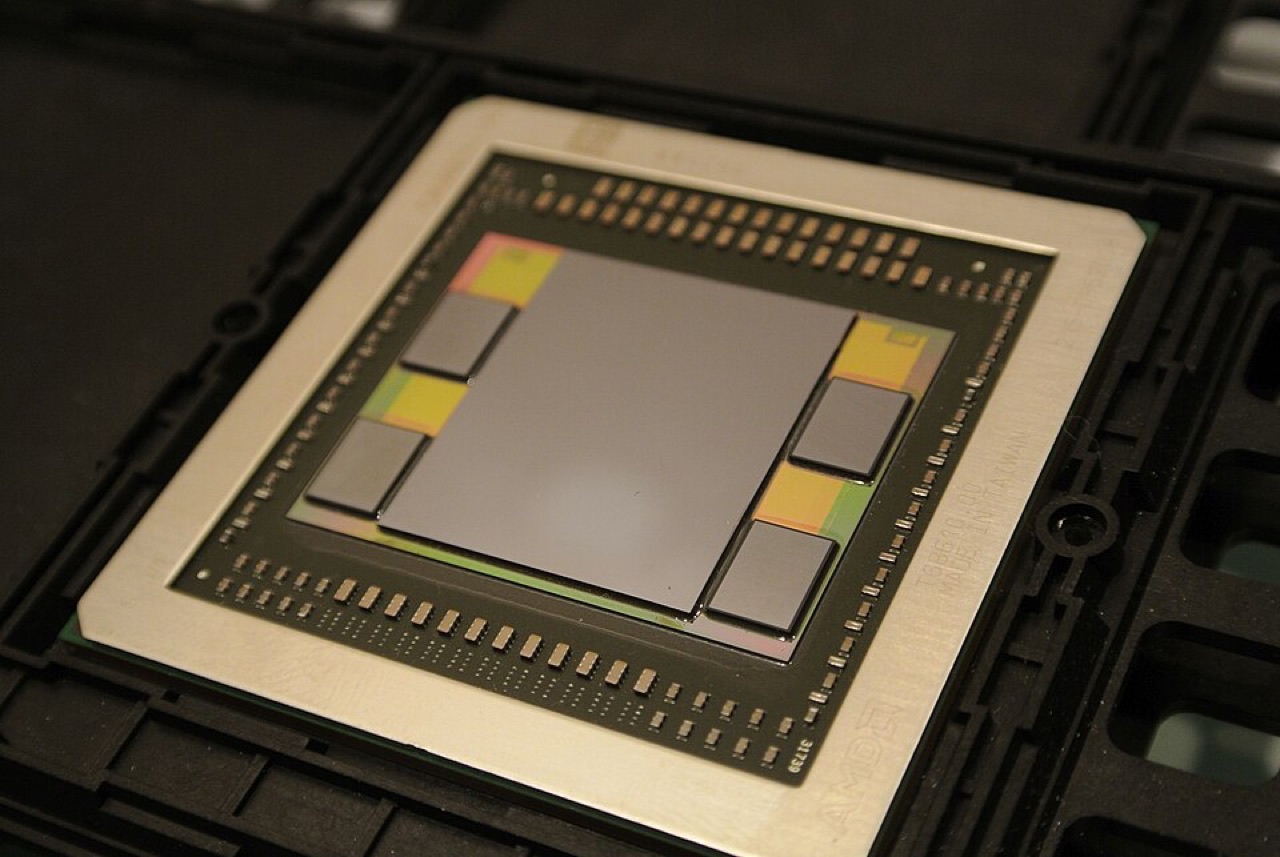
Consumer cards like the RTX 4090 offer great bandwidth but have limited VRAM (e.g., 24 GB). Workstation cards provide much higher VRAM and ECC memory, making them suitable for running all day in a server environment. Datacenter cards use HBM (High Bandwidth Memory) to provide the massive bandwidth needed for high-throughput serving and many concurrent users.
Multi-GPU and Scaling
If a model is too large for a single card, you can use multiple GPUs. However, how you connect them matters. There are two primary ways to split a model:
- Tensor Parallelism: This splits each layer's matrices across GPUs. Every GPU works on every token simultaneously. This requires very fast links like NVLink to be effective.
- Pipeline Parallelism: This gives each GPU a block of whole layers. Tokens flow from one GPU to the next. This is easier to implement but can leave GPUs idle if you aren't processing many requests at once.
A critical distinction for builders: two cards do not make a single user's experience twice as fast. Multi-GPU setups are primarily used to increase capacity (fitting larger models) or to serve many users at once, rather than making a single chat response faster.
Should You Rent or Buy Hardware?
Deciding whether to invest in your own hardware or use the cloud depends on your expected usage patterns. If you are a startup in India testing different models, renting might be more cost-effective than a large upfront capital expenditure.
| Situation | Best Choice | Why? |
|---|---|---|
| Exploring models for a few hours a week | Rent | No upfront cost; easy to try different GPUs. |
| Short training or fine-tuning burst | Rent Datacenter GPUs | Cheaper than buying a high-end GPU for a one-time task. |
| Bulk generation many hours every day | Buy or Lease | Fixed costs beat per-hour bills at high usage. |
| Sensitive data must stay on-premise | Buy (On-premise) | You maintain full control over data privacy. |
A useful rule of thumb: estimate your monthly GPU hours. If the hardware will be busy most of the day for a year or more, owning or leasing a dedicated machine usually wins. If the machine would sit idle, renting is the smarter financial move.
Questions people ask
Will Ollama run faster on a GPU than a CPU?
Yes, because GPUs have thousands of simple cores designed for parallel matrix multiplication, whereas CPUs are designed for varied logic.
What happens if my model is larger than my VRAM?
Runtimes like llama.cpp can split layers between the GPU and CPU, but the CPU portion will significantly slow down the generation speed.
Do I need more RAM or more VRAM for LLMs?
VRAM (on the GPU) is critical for speed due to high bandwidth. System RAM is used if you are running on a CPU or if the model exceeds VRAM capacity.
What is the benefit of quantization for Ollama?
Quantization (e.g., 4-bit) reduces the memory required for weights, allowing larger models to fit into smaller, more affordable GPUs.
Why does a long prompt cause a pause before the text starts streaming?
Reading the initial prompt (prefill) is a compute-limited task, unlike token generation (decoding), which is memory-bandwidth limited.